
Support & Software
Update the software on your BioStim
Depending on your version, your software will display one of the two screens below. Identify which one applies to you, then follow the few steps listed to install the latest update and take advantage of the latest protocols and improvements.
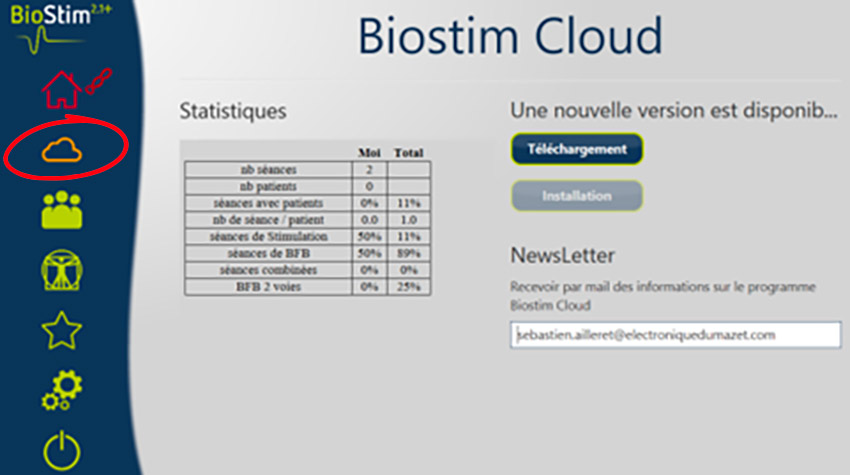
Display 1 – Biostim Cloud
Do you see the “Biostim Cloud” screen?
If your software interface displays this screen, your version is not up to date. To install the latest version, follow these steps:
- Click the cloud icon.
- Click the Download button.
- Finally, click “Install.”
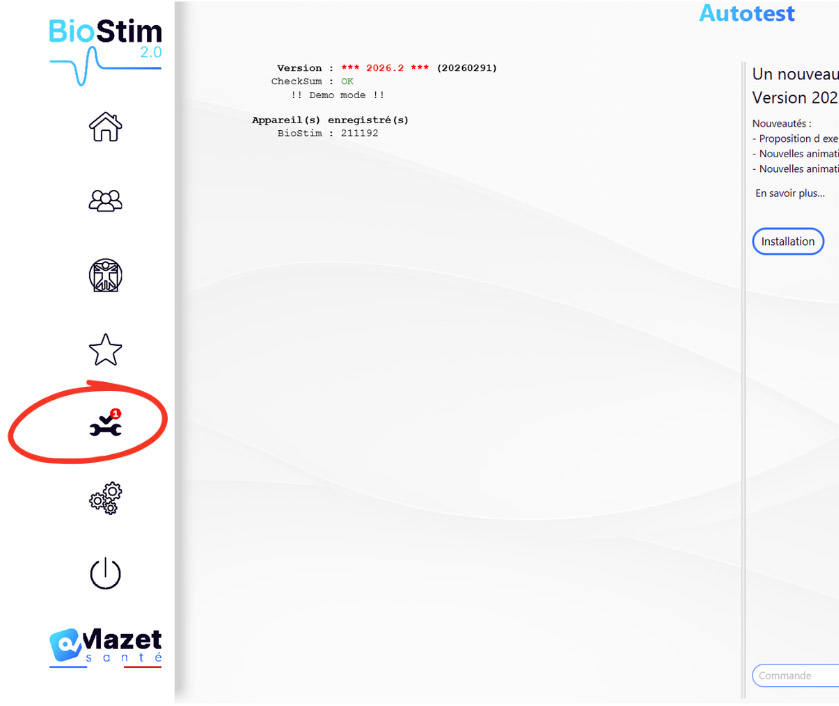
Screen 2 – Self-Test
Do you see the screen with the “Self-Test” icon?
If your software interface displays this screen, you can check to see if you have the latest version:
- Click the Self-Test icon.
- After the self-test, if your version is not up to date, the software will prompt you to download and install the new version. Then follow the on-screen instructions until the installation is complete.
Any questions about the update?
Our team will help you identify your version and update your BioStim.